
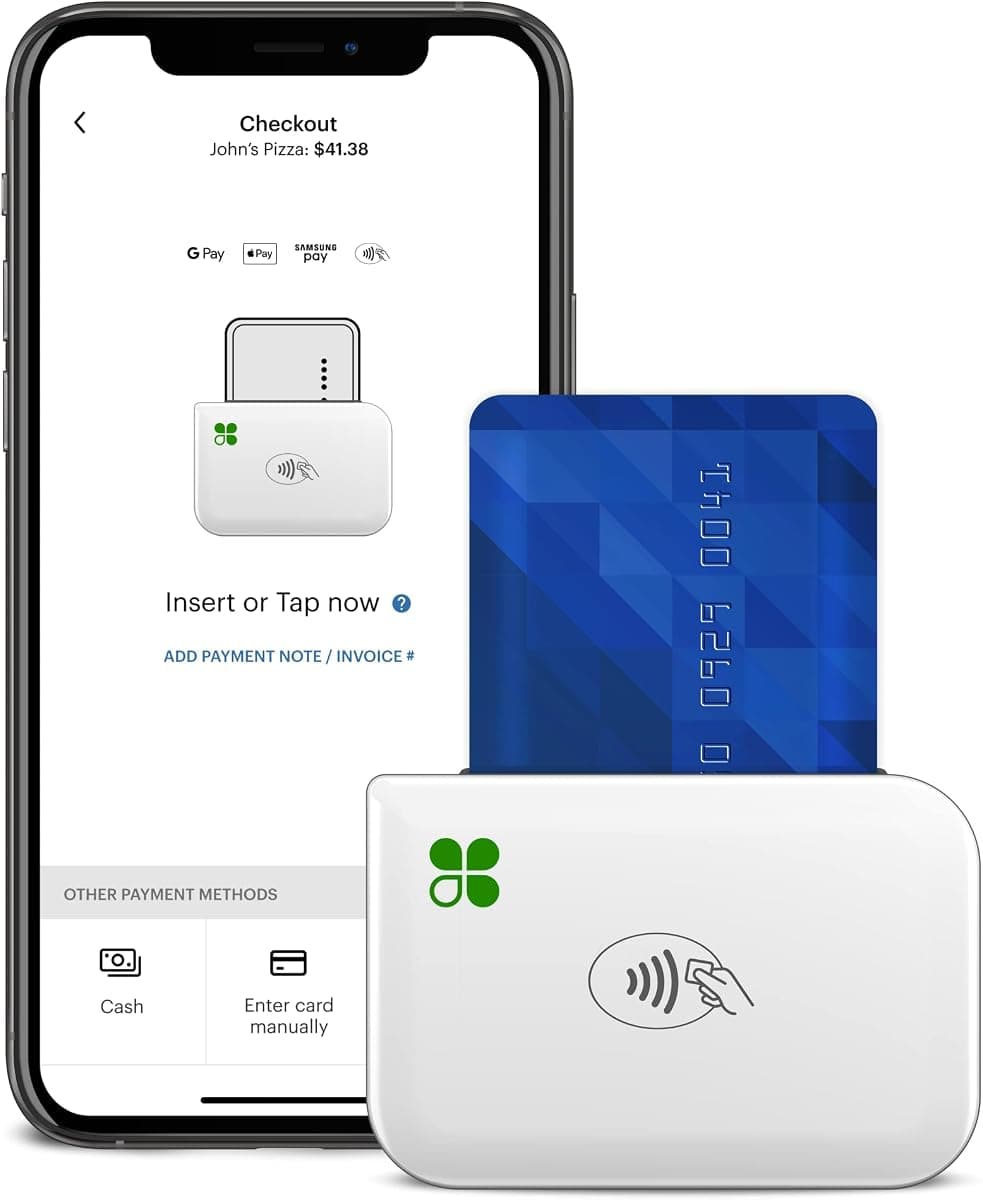
Clover Go is a pocket-sized card reader that pairs with the free Clover Go app on your own phone or tablet, turning it into a full mobile point of sale. It is the fastest way to accept cards, chips, and contactless taps wherever your business goes — a counter, a pop-up, a job site, or a delivery. This quick start guide breaks the process into six simple steps so you can be taking payments the same day your reader arrives. If you get stuck, our Caribbean Payments team is based right here in Puerto Rico and happy to help.
1.Charge the reader and power it on
- Take the Clover Go card reader out of the box and plug it into the included USB-C cable to charge. Give it 30 to 60 minutes for a full charge before your first shift — a full battery lasts through a busy day of sales.
- Press and hold the power button on the side until the status light blinks. A slow blue blink means the reader is on and ready to pair. Keep it within arm's reach of the phone or tablet you will use to ring up sales.
2.Pair with the Clover Go app over Bluetooth
- Download the free Clover Go app from the App Store or Google Play onto your phone or tablet, then turn on Bluetooth in your device settings so the two can find each other.
- Open the app, go to the reader or hardware menu, and select Connect a reader. When your Clover Go appears in the list, tap it — the status light turns solid blue once pairing succeeds. You only pair once; after that the reader reconnects automatically whenever both are powered on.
3.Sign in to your merchant account
- Log in with the Clover credentials Caribbean Payments issued when your account was set up. If this is your first time, follow the prompt to set a password and confirm your email.
- The app loads your business profile, tax rates, and any items or catalog you have on file. Take a moment to confirm your tax setting is correct for Puerto Rico so every receipt totals properly from the very first sale.
4.Accept your first tap, chip, or swipe
- In the app, enter a sale amount or pick an item, then tap Charge. Hand the reader to your customer or hold it out so they can tap a contactless card or phone, insert a chip, or swipe a magstripe card.
- Clover Go accepts Apple Pay, Google Pay, and contactless cards out of the box, and every payment is protected by EMV chip security and end-to-end encryption. Wait for the green approval before handing the card back.
5.Issue a receipt
- After approval, the app offers to send a receipt by text or email, or to skip it entirely. Enter the customer's number or address, or let them decline — the choice takes just a second at checkout.
- Because Clover Go is fully digital, there is no paper roll to reload. All of your receipts and sales history stay in the app and your Clover dashboard, ready to review or re-send any time.
6.Tips and troubleshooting
- If the reader will not connect, confirm Bluetooth is on, that the reader is charged, and that it is not still paired to another device nearby. Toggling Bluetooth off and back on clears most connection hiccups.
- If a card is declined, ask the customer to try again or use another card — most declines come from the issuing bank, not the reader. Keep the reader charged between shifts, install app updates when prompted, and call our local Puerto Rico support team any time you need a hand.
Want to see everything this reader can do, or compare it with a countertop terminal? Explore the Clover Go overview, or browse our card terminals to find the right fit for your business in Puerto Rico.