
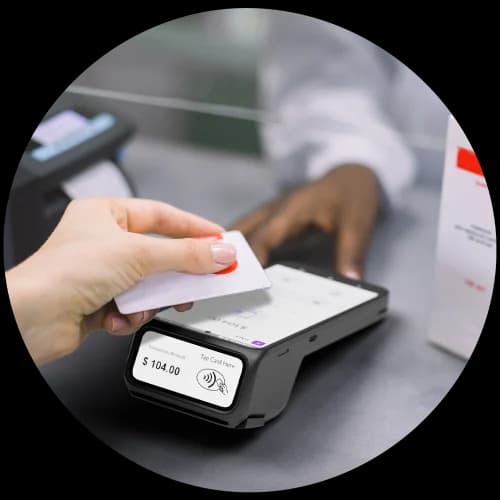
The Dejavoo P8 Dual Screen is an octa-core Android terminal built for a modern counter: a 6.7-inch main display for the operator and a 2.5-inch customer-facing sub-screen for the shopper. It runs countertop or fully wireless, connects over Wi-Fi, 4G, or Bluetooth, and accepts NFC tap, EMV chip, magstripe swipe, and mobile wallets — all backed by a high-speed built-in printer. This quick start walks you through the entire Dejavoo P8 Dual Screen setup, from opening the box to your first successful test sale.
Before you begin, have three things ready: your Wi-Fi network name and password (or an active 4G SIM), your merchant terminal ID (TID), and a roll of thermal receipt paper. With those on hand, work through the steps below in order and your P8 will be live and ready for customers.
1Unbox, charge, and power on
- Begin your Dejavoo P8 Dual Screen quick start by confirming everything is in the box: the dual-screen terminal, the USB-C power adapter, a receipt paper roll, and the charging or docking base if you ordered the countertop configuration. Inspect the unit for any shipping damage before powering it on.
- Because the P8 is a wireless-capable Android terminal, give it a first charge until the battery indicator is healthy. Hold the power button until the Dejavoo logo appears and let the octa-core device boot fully to the Android home screen before you continue the setup.
2Connect to Wi-Fi or 4G
- Open the settings gear and choose your connection. For Wi-Fi, select your network name, type the password exactly (it is case-sensitive), and wait for the signal icon to confirm the P8 is online. On the countertop base you can also use the wired connection if one is provided.
- If you run the terminal on the go, the built-in 4G radio keeps it connected anywhere with cellular coverage — just make sure the SIM is seated and active. Bluetooth is available too for peripherals. A stable connection is the backbone of the whole Dejavoo P8 Dual Screen setup, so verify you are online before moving on.
3Activate and download your profile
- With the terminal online, download the merchant profile that links the P8 to your account and processor. Open the setup or download menu and start the profile download. The terminal contacts the host, pulls your configuration, and reboots itself when it finishes.
- After it restarts, the P8 is activated and ready to process live cards across both screens. If the download stalls, re-check your connection and your terminal ID (TID). Our Puerto Rico team can push the profile remotely if you get stuck at this step.
4Load receipt paper
- The P8 has a high-speed built-in thermal printer. Open the printer bay latch, drop the roll in so the paper feeds from the bottom of the roll, and pull a short tail out past the cutter before you close the lid firmly.
- Feeding the paper the wrong way is the most common reason a receipt prints blank, so double-check the direction. Run a quick test print from the printer menu to confirm the roll is seated and the cutter is clean.
5Position the customer-facing sub-screen
- The P8's advantage is its second display. The 6.7-inch main screen faces you, while the 2.5-inch customer sub-screen faces the shopper. On the countertop base, angle the terminal so the customer can comfortably read the amount, tip prompt, and confirmation without leaning in.
- Position the sub-screen where a customer can tap a contactless card or phone against the NFC reader easily. A clear line of sight to the customer screen speeds up checkout and reduces confusion at the counter.
6Run a test sale — chip, tap, swipe, and wallet
- Before your first real customer, ring up a small test amount and exercise every read method. Insert a chip card into the EMV slot, tap a contactless card, tap a phone or watch to confirm mobile wallets like Apple Pay and Google Pay authorize, and swipe a magstripe card.
- Watch the customer sub-screen to be sure prompts and totals mirror correctly. Then void or refund the test right away so it does not settle. A clean test sale across chip, tap, swipe, and wallet is the checkpoint that your Dejavoo P8 Dual Screen quick start is complete.
7Reprint a receipt
- Need a duplicate receipt for a customer? From the transactions or reprint menu, select the last transaction or search by amount, then choose reprint. The high-speed printer produces a fresh copy in seconds.
- You can also offer an emailed receipt from the same menu if a customer prefers a digital copy over paper.
8Settle and batch out
- At the end of each business day, close your batch so the day's approved transactions settle and fund to your account. Open the batch or settlement menu and choose settle; the P8 totals the batch, sends it to the host, and prints a summary report.
- Make batching part of your nightly close. If a batch will not settle, confirm the terminal is online and re-run it — our support team can review the batch with you if anything looks off.
9Troubleshooting common issues
- If the P8 will not connect, restart your router and re-enter the Wi-Fi password, or confirm the 4G SIM is active. If the profile download fails, verify the TID and retry on a stronger signal. Declined test cards usually mean activation has not finished — re-run the profile download.
- For blank or jammed receipts, reopen the paper bay and reseat the roll so it feeds from the bottom. If the customer sub-screen looks frozen, reboot the terminal. When anything still looks off, reach out — local support means a real person who knows Puerto Rico merchants, not an overseas queue.
Want full specs and pricing before you set up? See the Dejavoo P8 Dual Screen overview, or browse our Dejavoo support and manuals for more help with your Puerto Rico business.