
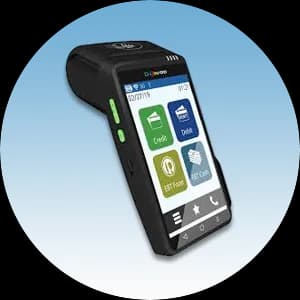
The Dejavoo QD4 is a sleek Android handheld with a bright touchscreen, fast contactless reads, and a built-in printer — and it only takes a few minutes to set up if you follow the steps in order. This quick start reference covers the entire Dejavoo QD4 setup, from opening the box to closing your first batch, so your terminal is live and ready for customers today.
Before you begin, have three things ready: your Wi-Fi network name and password (or an activated SIM for LTE), your merchant terminal ID (TID), and a roll of thermal receipt paper. With those on hand, work through the steps below in order.
1Unbox and power on the QD4
- Begin your Dejavoo QD4 quick start by unpacking the box and confirming everything arrived: the QD4 handheld, the charging base, the power adapter, and a roll of thermal receipt paper. Inspect the unit for any shipping damage before you power it up.
- Open the printer bay and drop in the paper roll so it feeds from the bottom, pulling a short tail past the cutter. Seat the QD4 on its charging base or connect the adapter, then hold the power button until the Dejavoo logo appears. Let it reach the home screen before continuing.
2Connect the QD4 to your network
- From the home screen, open the settings or gear menu and choose your connection. For Wi-Fi, select your network name, enter the password exactly (it is case-sensitive), and wait for the signal icon to confirm the QD4 is online.
- The QD4 also supports 4G/LTE for merchants who move around the floor or work curbside. Insert an activated SIM if you are going cellular. A solid connection is the foundation of the whole quick start, so confirm you are online before moving on.
3Activate and load parameters
- With the QD4 connected, download its parameters — the settings that link the terminal to your merchant account and processor. Open the setup or download menu and start the parameter download. The QD4 contacts the host, pulls your configuration, and reboots.
- After it restarts, the QD4 is activated and ready to process live cards. If the download stalls, re-check your connection and your terminal ID (TID). Our Puerto Rico team can push parameters to the QD4 remotely if you get stuck here.
4Configure receipts and tip prompts
- Tailor the QD4 to your counter. In receipt settings, add your business name, address, and phone number to the header, and choose whether customers get a printed copy, an emailed copy, or both.
- If you take tips, enable the tip prompt and set suggested percentages such as 15%, 18%, and 20%. You can also turn on tip adjustment so staff add gratuity after the sale — handy for restaurants, salons, and bars using the QD4 tableside.
5Run a test transaction
- Before your first customer, run a small test sale on the QD4 to confirm everything works end to end. Ring up a low amount, then insert a chip card, tap a contactless card or phone, and swipe to verify all three read methods.
- Void the test right away so it does not settle. Confirm the receipt prints cleanly and the tip and totals appear correctly. A clean test sale is the final checkpoint that your Dejavoo QD4 quick start is complete.
6Reprint a receipt
- Need a duplicate for a customer or your records? From the QD4 home screen open the Favorites or main menu, choose Reprint, and select either the last receipt or a transaction by number.
- The QD4 reprints the merchant or customer copy on demand, so you are never scrambling when someone asks for their slip after the fact.
7Settle and close your batch
- At the end of each business day, settle your batch so the day's approved transactions are sent for funding. From the menu choose Settlement or Batch, then confirm. The QD4 totals your sales, tips, and refunds and closes the batch.
- Keep the printed settlement report for your records. Settling daily keeps deposits moving and your reconciliation clean.
8Troubleshooting common issues
- If the QD4 will not connect, restart your router and re-enter the Wi-Fi password, watching for a wrong character. If a parameter download fails, verify the TID and try again on a stronger signal. Declined test cards usually mean activation did not finish — re-run the parameter download.
- For printing problems, reopen the paper bay and reseat the roll so it feeds from the bottom. If anything still looks off, reach out — local support means you talk to a real person who knows Puerto Rico merchants, not an overseas queue.
Want full specs and pricing on the terminal? See the Dejavoo QD4 page, or browse our Dejavoo support and manuals for deeper how-tos and downloadable references.