
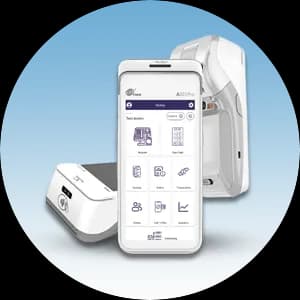
On The Fly POS is a cloud-based, Android point-of-sale system that runs the whole restaurant — taking orders, firing them to the kitchen screen, selling online, and keeping the line moving. Getting it running is straightforward, and this reference breaks the process into seven simple steps. Follow them in order and you will be taking orders the same day you set up. Our On The Fly POS system is supported by a Caribbean Payments team based right here in Puerto Rico, so help is only a call away.
1.Sign in and set up your cloud account
- On The Fly POS runs in the cloud, so setup starts in your browser and on the device. Open the On The Fly app on your Android tablet or handheld — many Puerto Rico merchants use the PAX A920 — and sign in with the account credentials from your Caribbean Payments welcome details.
- Enter your business name, location, tax rate, and hours in the back-office settings. Because everything is stored in the cloud, these details sync instantly to every device you add later, and future updates arrive automatically at no extra cost.
3.Connect the Kitchen Display System
- Place a screen in the kitchen and pair it as a Kitchen Display System (KDS) so orders arrive digitally instead of on paper tickets. Assign which categories route to which station — grill, bar, expo — so the right line sees the right items.
- Turn on the customer-facing order status screen too. It shows guests when their order is being prepared and when it is ready to pick up, giving you a clean, modern replacement for a buzzer.
4.Enable online ordering and delivery
- Switch on your On The Fly ordering website so customers can place dine-in, pickup, and delivery orders that sync straight into the POS — no phone tag, no re-keying. Share the link on your social profiles and Google listing.
- If you use third-party delivery like Uber Eats, connect it so those orders route directly to the kitchen alongside your own. Every channel lands in one queue, which keeps the whole team on the same page.
5.Link your payment processing
- On The Fly POS is device- and processor-flexible, so connect the card payments you run with Caribbean Payments to the POS. On a PAX A920 the reader is built in, so tap, chip, and swipe are ready at the point of sale.
- Run a small test charge, confirm it approves, and then void it. A clean approval and reversal proves the reader, your network, and your merchant account are all talking to each other before you open.
6.Run a test order end to end
- Before going live, place a full practice order the way a real one flows. Ring an item on the POS, send it to the kitchen display, mark it ready on the status screen, then place a second order through your ordering website to confirm it syncs in.
- Check that receipts print or email correctly and that the order shows up in reporting. Walking one order through the whole path is the fastest way to catch anything before customers do.
7.Go live and review your reports
- Open for business and let On The Fly POS run the floor — orders in, tickets to the kitchen, online and delivery flowing to one queue. Use staff logins and permissions so each team member sees only what they need.
- At the end of the day, review sales, item, and staff reports from the cloud dashboard, and lean on inventory counts to plan your next order. If anything looks off, our local Puerto Rico team can walk you through it by phone.
Weighing your options before you commit? Explore our full range of payment solutions to find the right POS, terminal, and processing fit for your business in Puerto Rico.