
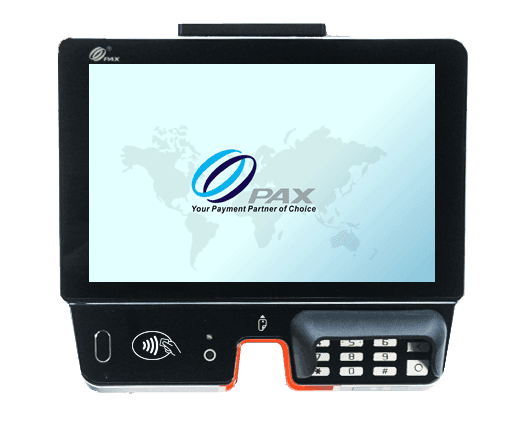
The PAX Aries8 is an 8-inch Android tablet POS that scans barcodes, accepts tap, chip, and swipe on its integrated payment module, signs staff in by fingerprint, and prints receipts from the countertop stand. Getting it running is quick, and this reference breaks the process into seven simple steps. Follow them in order and you will be taking payments the same day your device arrives. Our PAX Aries8 tablet POS is supported by a Caribbean Payments team based right here in Puerto Rico, so help is only a call away.
1.Unbox and power on the PAX Aries8
- Confirm your box holds the PAX Aries8 tablet, the USB-C power adapter, and any accessories you ordered — the swivel stand and printer for the counter, or the pistol-grip handle for mobile scanning. Set the tablet on a flat surface near an outlet and give it a first full charge before you start.
- Press and hold the power button on the edge until the PAX logo appears and the Android home screen loads. If you plan to run it as a countertop register, seat the Aries8 on the swivel stand now so cables route cleanly and the printer sits within reach.
2.Connect the Aries8 to your network
- From the home screen open Settings and tap Wi-Fi, choose your business network, enter the password, and wait for Connected. On the countertop, you can instead plug in Ethernet through the stand's dock for a rock-steady wired link.
- The Aries8 also supports Bluetooth for accessories and an optional 4G module for selling away from the counter. If you take payments in the aisle, curbside, or at a market, ask our team to enable data so the tablet stays online anywhere on the island.
3.Activate the payment app
- With the tablet online, open the payment application from the home screen. On first launch it asks for an activation or terminal ID code tied to your merchant account — enter the exact code from your Caribbean Payments welcome details.
- The app then downloads your merchant profile, tax settings, and encryption keys, and may prompt for a quick update or restart. Let it finish; this one-time step links every future transaction on the Aries8 to your business correctly.
4.Enroll staff fingerprints
- Open the staff or user settings and add each team member, then enroll a fingerprint by having them rest a finger on the built-in reader several times until the scan completes. This ties clock-ins, voids, and manager overrides to the right person.
- Fingerprint login means no shared passwords and a clean record of who did what. Enroll a backup finger for anyone who signs in often, and set manager-level permissions for the staff who approve refunds and discounts.
5.Scan an item and run a test sale
- Prove the whole path before going live. In the payment app choose Sale, then use the built-in scanner to read a product barcode or QR code — line the code up in the scan window until it beeps and the item drops onto the ticket.
- Present a card you control: tap it for contactless, insert the chip, or swipe the magstripe on the integrated payment module. Wait for Approved, then void the transaction from the Transactions or History menu right away. A clean scan, approval, and reversal confirm the scanner, reader, network, and merchant account are all talking.
6.Print, email, and reprint receipts
- With the countertop printer attached, tap Print after an approval for a thermal copy, or choose Email or SMS to send a digital receipt — handy for saving paper and capturing customer contact details when you sell in hand.
- Need a duplicate later? Open the Transactions menu, find the sale, and tap Reprint. If the printer runs out mid-sale, reload paper and reprint from that same screen — the transaction is already saved, so no sale is ever lost.
7.Settle, batch out, and troubleshoot
- At the end of each business day, settle your batch so the day's approved sales are sent for funding. Open the payment app menu, choose Settlement or Batch, and confirm — the Aries8 totals every transaction and closes the batch. Many merchants prefer auto-settlement at a fixed time each night, which our team can switch on for you.
- If a card is declined, ask the customer to try again or use another card — most declines come from the issuing bank, not the tablet. If the Aries8 drops offline, re-check Wi-Fi or Ethernet, or switch to the 4G connection. Restart the tablet weekly and install updates when prompted. If a batch will not settle, our local Puerto Rico team can walk you through it by phone.
Comparing devices before you commit? Browse our full range of card terminals to find the right handheld or countertop fit for your business in Puerto Rico.